Password Entries
Password entries are the most common type of vault entry in bPass. They store website logins, application credentials, and any password-based accounts with full integration to the browser extension for seamless auto-fill functionality.
Creating a Password Entry
Step 1: Access the Vault
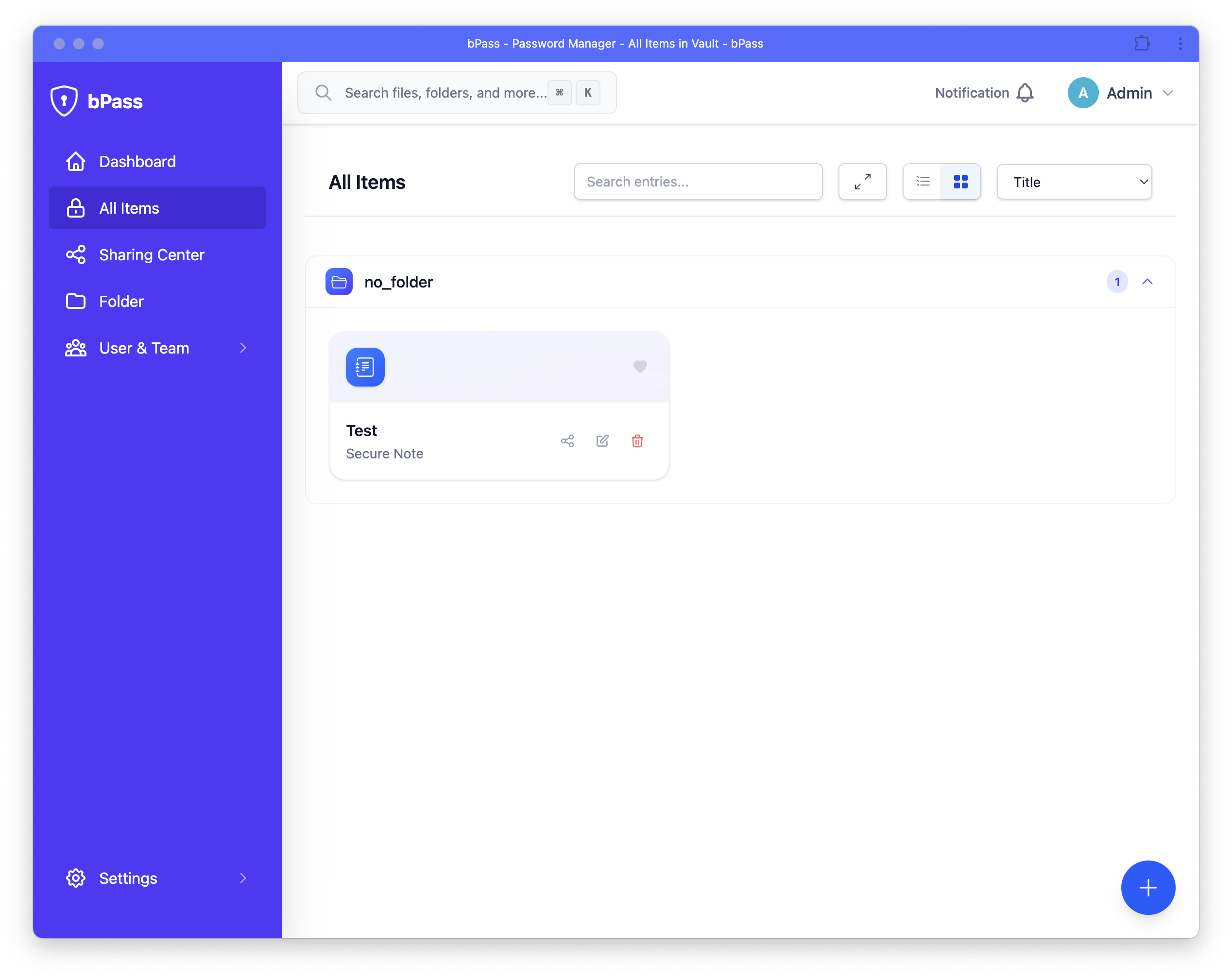
- Navigate to your Vault from the main dashboard
- Click the "Add Entry" button or press
Ctrl + N(Windows/Linux) orCmd + N(Mac) - Select "Password" from the entry type options
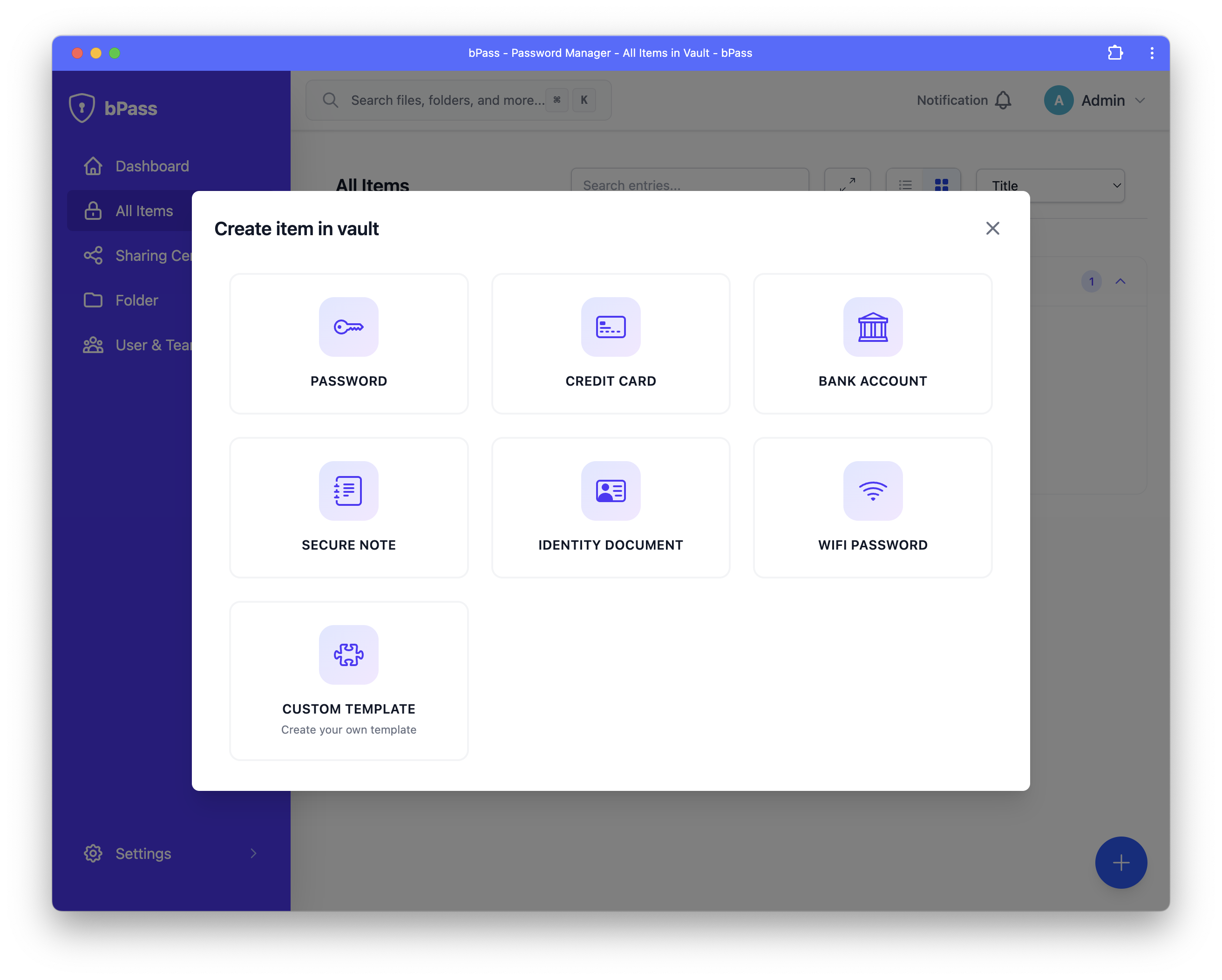
Step 2: Fill Basic Information
Complete the required fields for your password entry:
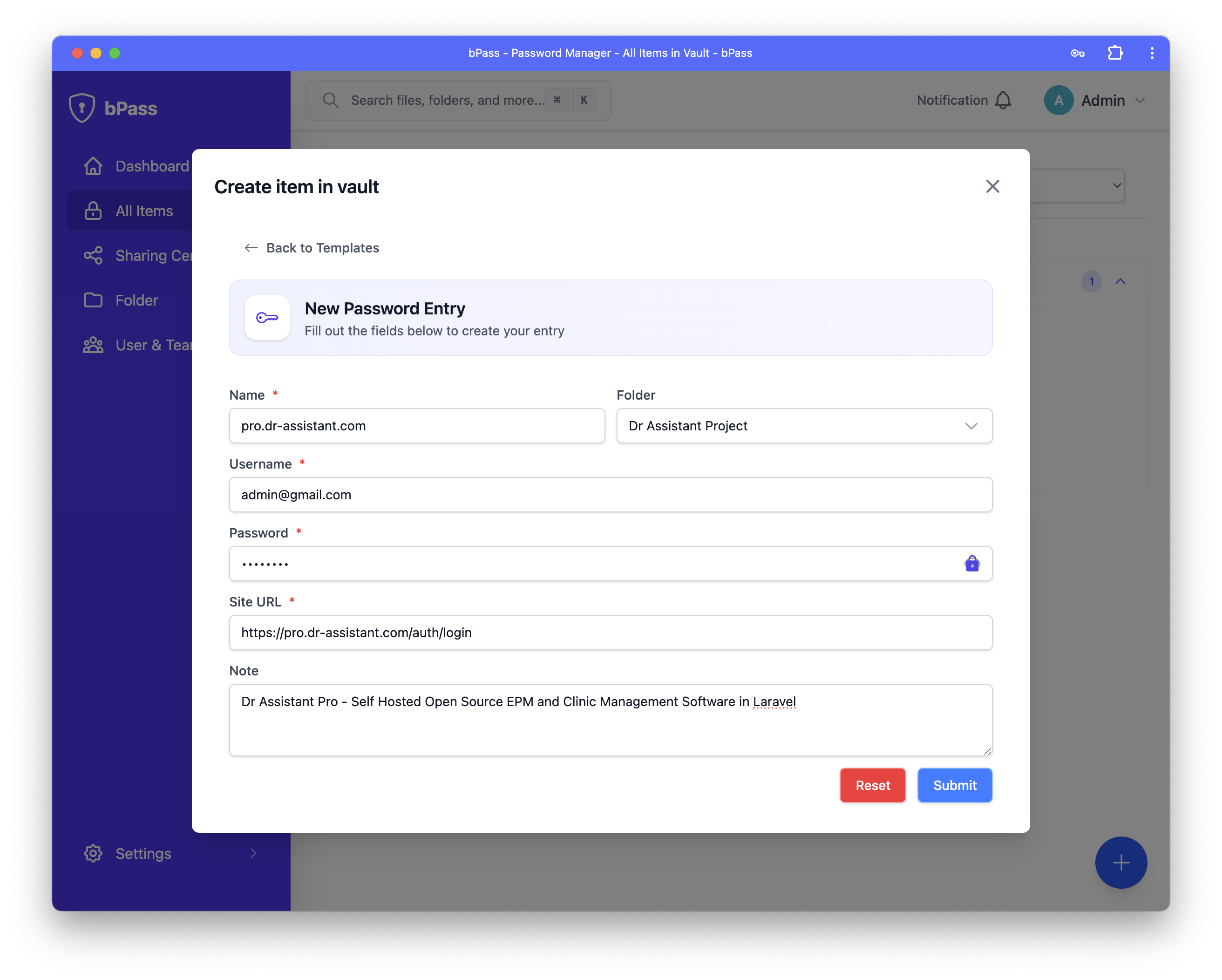
- Entry Name - A descriptive name for this login (e.g., "Gmail Account", "GitHub")
- Website URL - The website address where this login is used
- Username/Email - Your login identifier
- Password - The password for this account
- Folder - Choose a folder to organize this entry (optional)
🔒 Password Generator
Generate strong, unique passwords: - Click the 🎲 Generate button next to the password field - Customize length (8-128 characters) - Include/exclude character types (uppercase, lowercase, numbers, symbols) - Exclude similar characters (0, O, l, 1) for better readability - Copy generated password to clipboard automatically
Sharing Options
Configure sharing settings for your entry:
- Mark as Favorite - Quick access from favorites view
- Set Sharing Permissions - Control who can access this entry
- Add Tags - Categorize for better organization
- Set Expiration - Remind yourself to update passwords
Using Password Entries
Auto-Fill with Browser Extension
When you visit a website where you have a saved password:
- Automatic Detection - Extension detects login forms
- One-Click Fill - Click the bPass icon to auto-fill
- Quick Access - Use keyboard shortcut
Ctrl + Shift + L - Multiple Accounts - Choose from multiple saved accounts for the same site
Manual Access
Access your passwords directly from the web application:
- View Entry - Click on any password entry to view details
- Copy to Clipboard - Click the copy icon next to any field
- Quick Actions - Use the action menu for common tasks
- Edit in Place - Modify entries directly from the vault view
Password Best Practices
Creating Strong Passwords
Follow these guidelines for maximum security:
- Length Matters - Use at least 12 characters, prefer 16+
- Complexity - Include uppercase, lowercase, numbers, and symbols
- Uniqueness - Never reuse passwords across different accounts
- Avoid Personal Info - Don't use names, dates, or personal details
- Regular Updates - Change passwords periodically, especially for critical accounts
Using the Password Generator
Leverage bPass's built-in password generator:
Recommended Settings:
• Length: 16-20 characters
• Include: Uppercase, lowercase, numbers, symbols
• Exclude: Similar characters (for readability)
• Exclude: Ambiguous characters (if typing manually)
Managing Password Changes
When updating passwords:
- Generate New Password - Use the password generator for a fresh, strong password
- Update Account - Change the password on the actual website/service
- Update bPass Entry - Modify the entry with the new password
- Browser Extension Sync - Changes sync automatically to the extension
- Verify Auto-Fill - Test that auto-fill works with the new password
Organizing Password Entries
Folder Structure
Organize passwords with a logical folder hierarchy:
📁 Personal
  📁 Social Media
    🔑 Facebook
    🔑 Twitter
    🔑 LinkedIn
  📁 Shopping
    🔑 Amazon
    🔑 eBay
  📁 Banking
    🔑 Online Banking
    🔑 Credit Cards

📁 Work
  📁 Development
    🔑 GitHub
    🔑 AWS Console
  📁 Communication
    🔑 Slack
    🔑 Microsoft Teams
Favorites
Mark frequently used passwords as favorites for quick access: - Banking and financial accounts - Primary email accounts - Work applications used daily - Social media accounts
Integration Features
Browser Extension
Password entries integrate seamlessly with the browser extension:
- Auto-Detection - Automatic form detection on websites
- One-Click Fill - Instant login with saved credentials
- Save Prompts - Offers to save new passwords automatically
- Update Notifications - Alerts when passwords change on websites
- Multi-Account Support - Choose from multiple saved accounts per site
Team Sharing
Share password entries securely with team members:
- Individual Sharing - Share specific entries with selected users
- Team Folders - Share entire folders with team groups
- Permission Levels - Control view, edit, and re-share permissions
- Access Logs - Monitor who accessed shared passwords
- Revocation - Instantly remove access when needed
Import/Export
Migrate passwords from other sources:
- Import from Browsers - Chrome, Firefox, Safari, Edge
- Import from Password Managers - LastPass, Bitwarden, 1Password, etc.
- CSV Import - Custom formats and spreadsheets
- Secure Export - Encrypted backups for migration
Security Considerations
Encryption
All password entries are protected with military-grade encryption:
- Client-Side Encryption - Passwords encrypted before transmission
- AES-256-GCM - Industry-standard symmetric encryption
- Unique Keys - Each entry encrypted with a unique key
- Zero-Knowledge - Server cannot decrypt your passwords
Access Control
Control who can access your password entries:
- Personal Vault - Private entries only you can access
- Shared Entries - Controlled sharing with specific users
- Team Entries - Role-based access for team collaboration
- Audit Logs - Complete record of all access attempts
Ready to start storing your passwords securely? Create your first password entry or install the browser extension for seamless auto-fill!