Team Management
The Team Management feature in bPass allows you to create and manage teams to easily share password vault entries with groups of people. This comprehensive guide will help you understand how to effectively manage teams and collaborate securely with your colleagues.
Overview
Team Management provides you with the ability to: - Create teams for different groups or projects - Add team members with specific permission levels - View detailed team information and member lists - Share vault entries with entire teams instead of individual users - Manage team member permissions and access levels - Delete teams when they're no longer needed
Accessing Team Management
To access the Team Management section: 1. Log in to your bPass dashboard 2. Navigate to the Teams section from the main menu 3. You'll see the "Your Team" page displaying all teams you're part of or own
Team List Overview
The Team List page shows all teams with the following information:
Team Display
- Team Avatar: Colorful initials representing the team name
- Team Name: The name of the team
- Description: Brief description of the team's purpose
- Member Count: Number of active members in the team
- Creation Date: When the team was created
Available Actions
For each team, you can: - View Details: Click on a team to see detailed information and member list - Edit: Modify team information (if you have admin permissions) - Delete: Remove the team entirely (owners only)
Creating a New Team
To create a new team:
- Click the "+ New Team" button on the Team List page
- Fill in the team information:
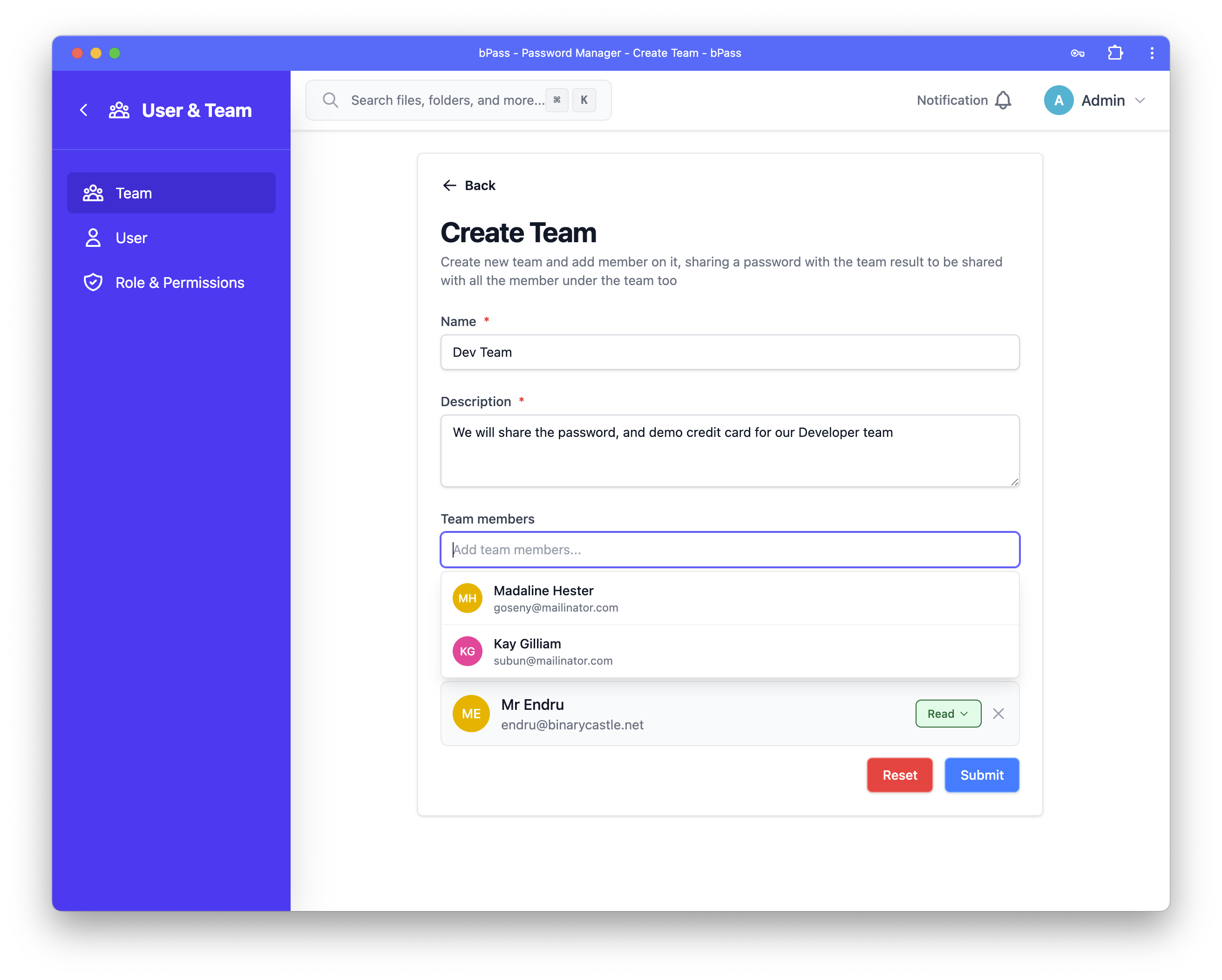
Required Information
- Team Name: Enter a descriptive name for your team
- Description: Provide details about the team's purpose or project
- Team Members: Add users to the team with appropriate permission levels
Adding Team Members
When adding members to your team:
- Select Users: Choose from existing users in your organization
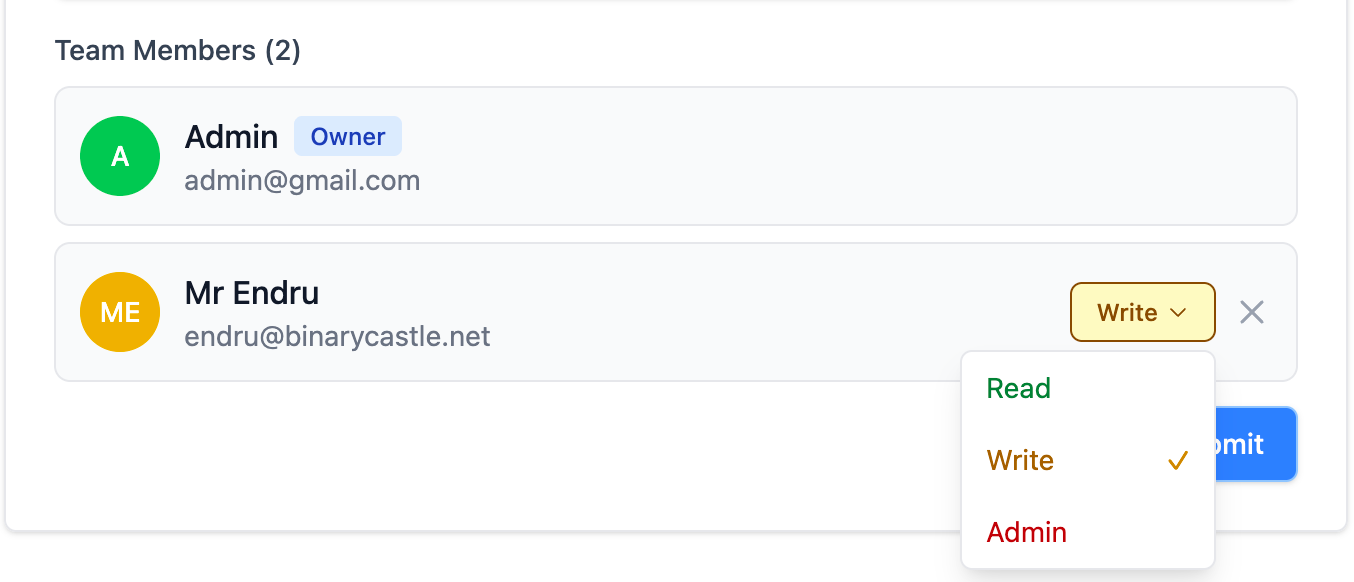
- Set Permission Levels: Assign appropriate access levels:
- Read: Can view shared vault entries but cannot modify them
- Write: Can view and edit shared vault entries
- Admin: Can view, edit, and manage vault entries plus team settings
Important Notes
- Team Owner: The person who creates the team automatically becomes the owner
- Secure Sharing: Teams use advanced encryption to ensure shared data remains secure
-
Access Control: Members can only access vault entries that are explicitly shared with the team
-
Click Create Team to establish the new team
Team Details and Management
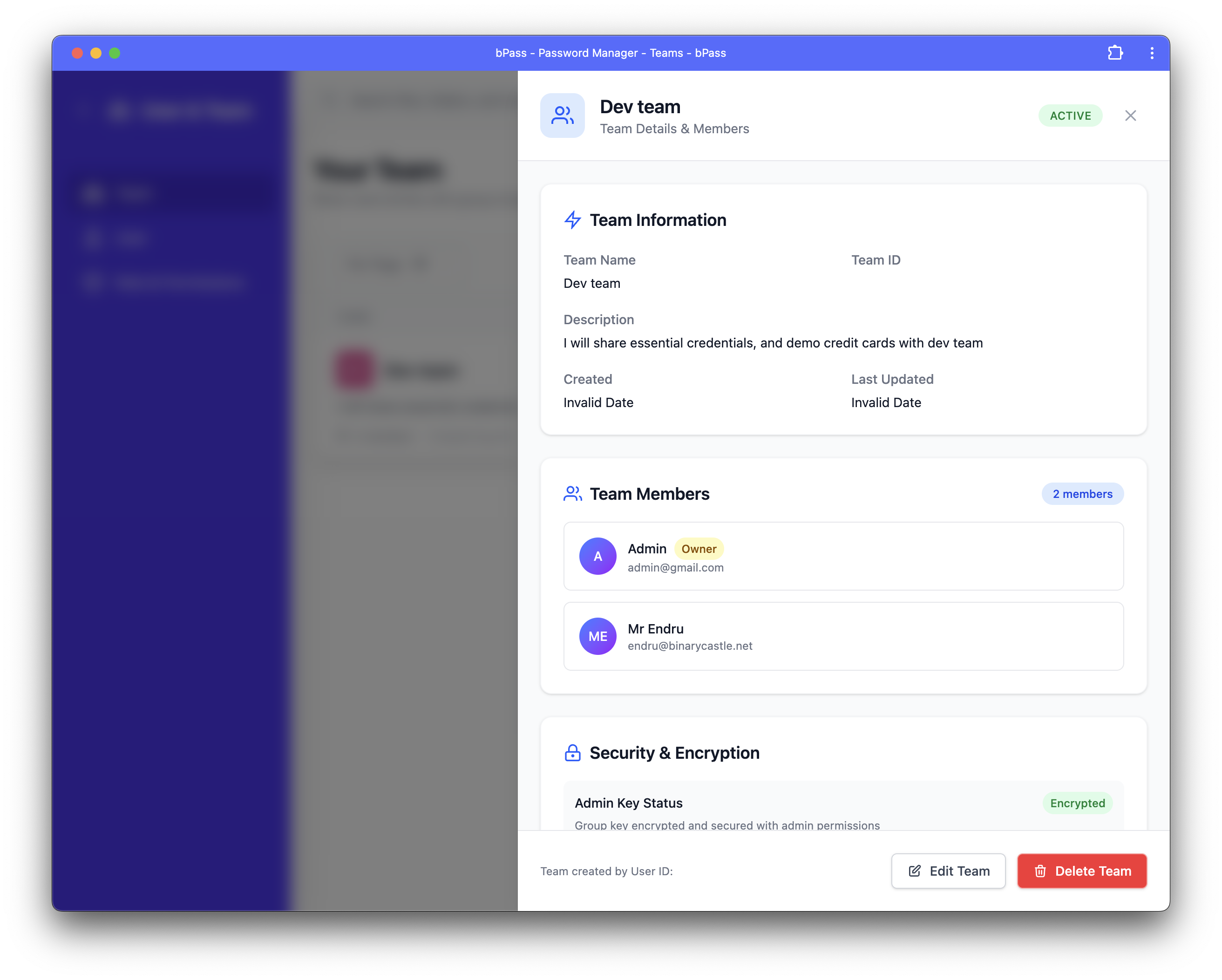
When you click on a team, you'll see the Team Details panel with comprehensive information:
Team Information Section
- Team Name: Current name of the team
- Team ID: Unique identifier for the team
- Description: Team purpose and details
- Creation Date: When the team was established
- Status: Whether the team is active or inactive
Team Members Section
The members section displays:
Member Information
- Avatar/Initials: Visual representation of each member
- Name: Full name of the team member
- Email: Member's email address
- Permission Level: Current access level (Read, Write, or Admin)
- Owner Status: Indicates if the member is the team owner
- Join Date: When the member joined the team
Permission Levels Explained
- Read (Gray Badge):
- View shared vault entries
- Cannot create or modify entries
-
Cannot add new shares
-
Write (Blue Badge):
- All Read permissions
- Create and edit vault entries
-
Share entries with others
-
Admin (Green Badge):
- All Write permissions
- Manage team settings
- Add/remove team members
- Change member permissions
Member Management
Team owners and admins can: - Add new members to the team - Change existing member permission levels - Remove members from the team - Transfer ownership to another member
Sharing Vault Entries with Teams
Once you have created teams, you can easily share password vault entries:
- From Vault Entry: When creating or editing a vault entry, you can share it with entire teams
- Team Access: All team members will have access according to their permission level
- Automatic Updates: When you update a shared entry, all team members see the changes
- Secure Encryption: Each team has its own encryption keys to ensure data security
Team Permissions and Security
Permission Hierarchy
- Owner: Has all permissions and can delete the team
- Admin: Can manage team and vault entries but cannot delete the team
- Write: Can create and edit vault entries
- Read: Can only view shared vault entries
Security Features
- End-to-End Encryption: All shared data is encrypted with team-specific keys
- Access Control: Members only see what's explicitly shared with the team
- Audit Trail: Track who accesses and modifies shared entries
- Secure Key Exchange: Automatic secure key distribution to team members
Deleting Teams
⚠️ Warning: Deleting a team is a permanent action that affects shared vault access.
To delete a team (owners only):
- Click the Delete button (trash icon) next to the team
- A confirmation dialog will appear with the warning:
"Are you sure? Once you delete a team, you will lose access to any vault entries that were shared with users in the team"
- Click Confirm to proceed with deletion or Cancel to abort
What Happens When You Delete a Team
- The team is permanently removed
- All team-specific sharing permissions are revoked
- Vault entries shared with the team become inaccessible to former members
- Individual copies of shared entries (if any) remain with their original owners
Before Deleting
Consider these alternatives: - Transfer Ownership: Move ownership to another team member - Archive Team: Keep the team but remove unnecessary members - Individual Sharing: Share important entries directly with specific users before deletion
Best Practices
Team Organization
- Clear Naming: Use descriptive names that indicate the team's purpose
- Appropriate Size: Keep teams manageable (typically 5-15 members)
- Regular Reviews: Periodically review team membership and permissions
- Purpose-Driven: Create teams based on projects, departments, or access needs
Permission Management
- Principle of Least Privilege: Give members the minimum permissions needed
- Regular Audits: Review and update permissions as roles change
- Owner Succession: Plan for ownership transfer when the owner leaves
- Clear Responsibilities: Ensure team members understand their access levels
Security Considerations
- Member Verification: Only add trusted users to teams
- Sensitive Data: Use teams judiciously for highly sensitive information
- Access Monitoring: Regularly check who has access to critical shared entries
- Prompt Removal: Remove members immediately when they no longer need access
Troubleshooting
Common Issues
Cannot See Shared Entries - Verify you're a member of the team - Check if the entry was actually shared with your team - Ensure your account is active and has proper permissions
Permission Denied Errors - Confirm your permission level allows the action you're trying to perform - Contact the team owner or admin for permission updates - Verify the team is still active
Missing Team Members - Check if members were removed or deactivated - Verify user accounts are still active in the system - Ensure proper invitation process was followed
Sharing Problems - Confirm you have Write or Admin permissions - Verify the team exists and is active - Check if there are any system-wide sharing restrictions
Getting Help
If you encounter persistent issues with team management: 1. Contact your team owner or administrator 2. Check with your system administrator 3. Review system logs for detailed error information 4. Refer to your organization's bPass usage guidelines