Share with Team
Team sharing allows you to securely share vault entries with all members of your team. This is ideal for sharing common credentials, documents, or other sensitive information that multiple team members need access to.
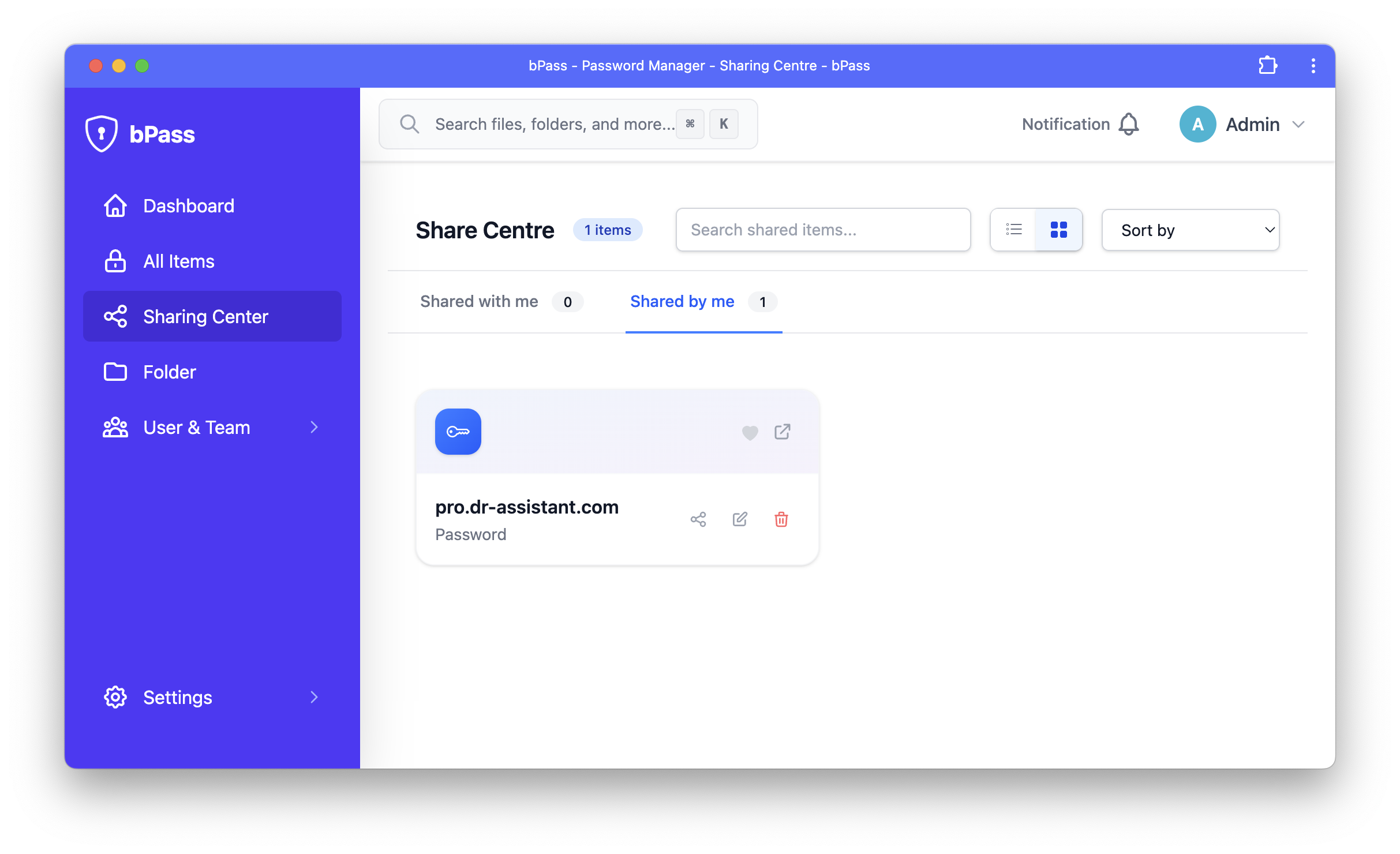
In the sharing center, you will see all the items you have shared with others, as well as any items that have been shared with you or your team.
How to Share an Item with Your Team
To share a vault entry with your team, start from the "All Items" view in your vault:
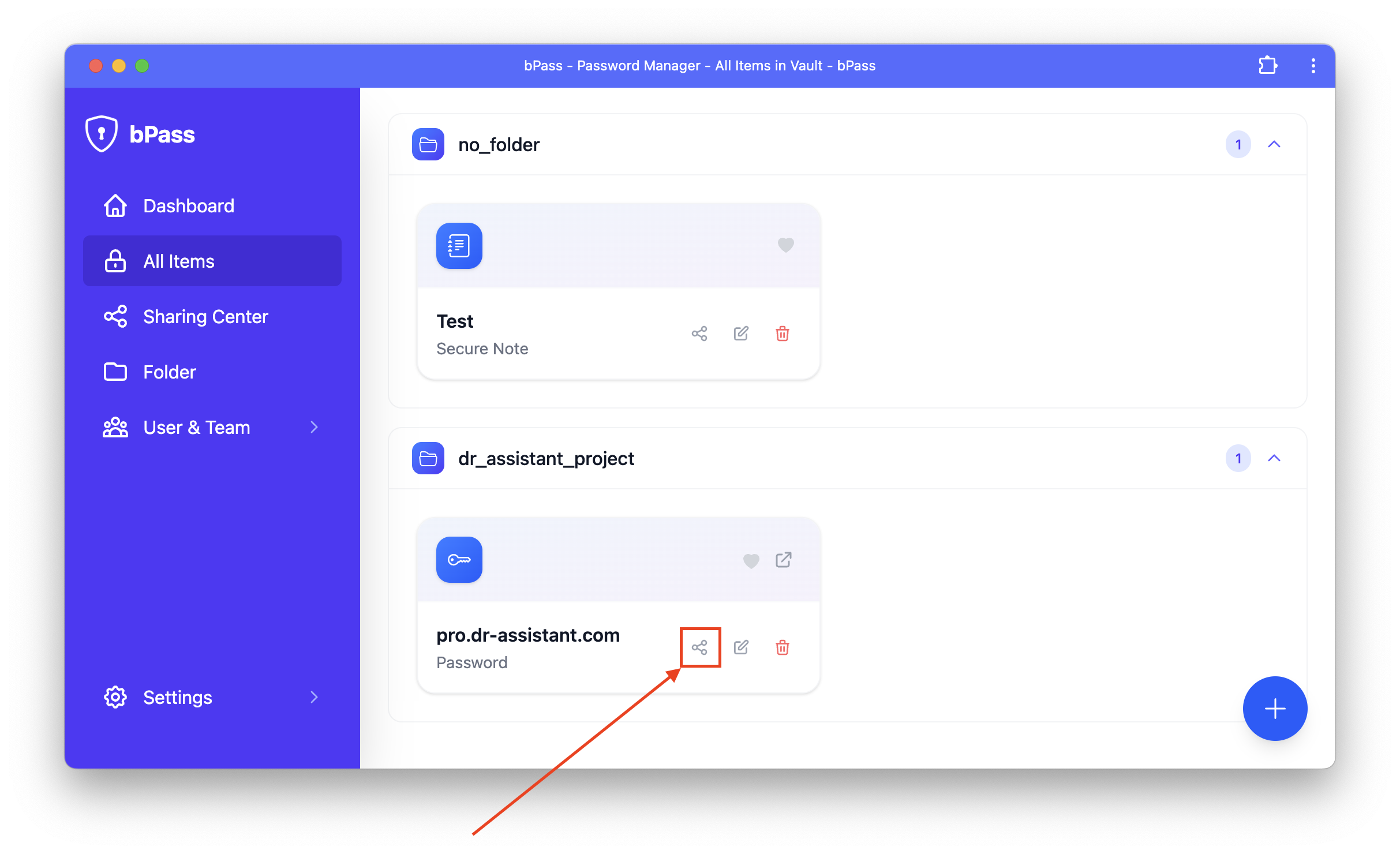
- Navigate to the "All Items" section of your vault
- Locate the entry you want to share with your team
- Click the share button (usually represented by a share icon) on the entry card
- A sharing menu will appear with different sharing options
Step 1: Select the Item to Share
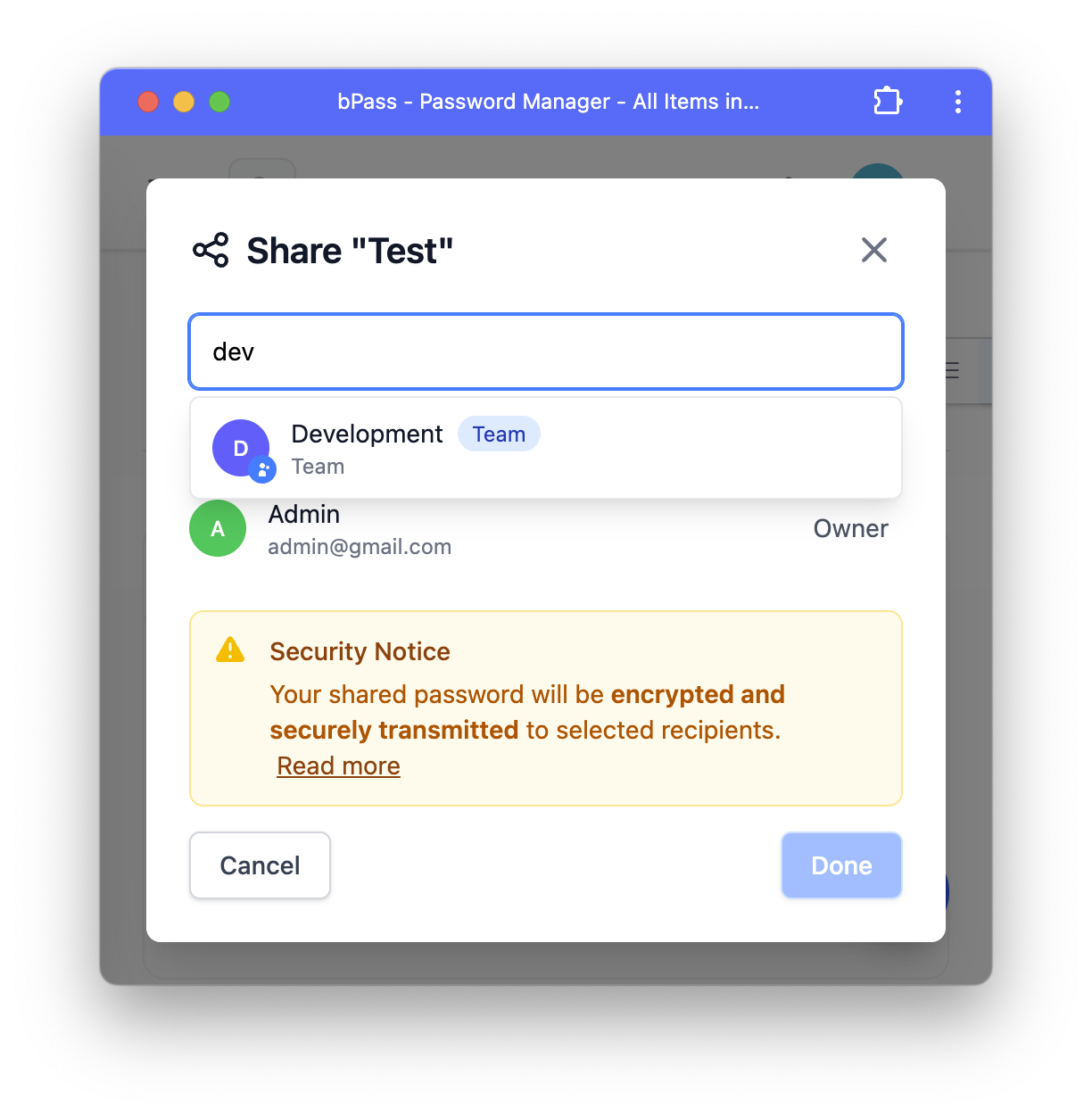
- Navigate to your vault and locate the entry you want to share
- Click on the entry to open it
- Look for the "Share" or sharing icon/button
- Select "Share with Team" from the sharing options
Step 2: Configure Team Permissions
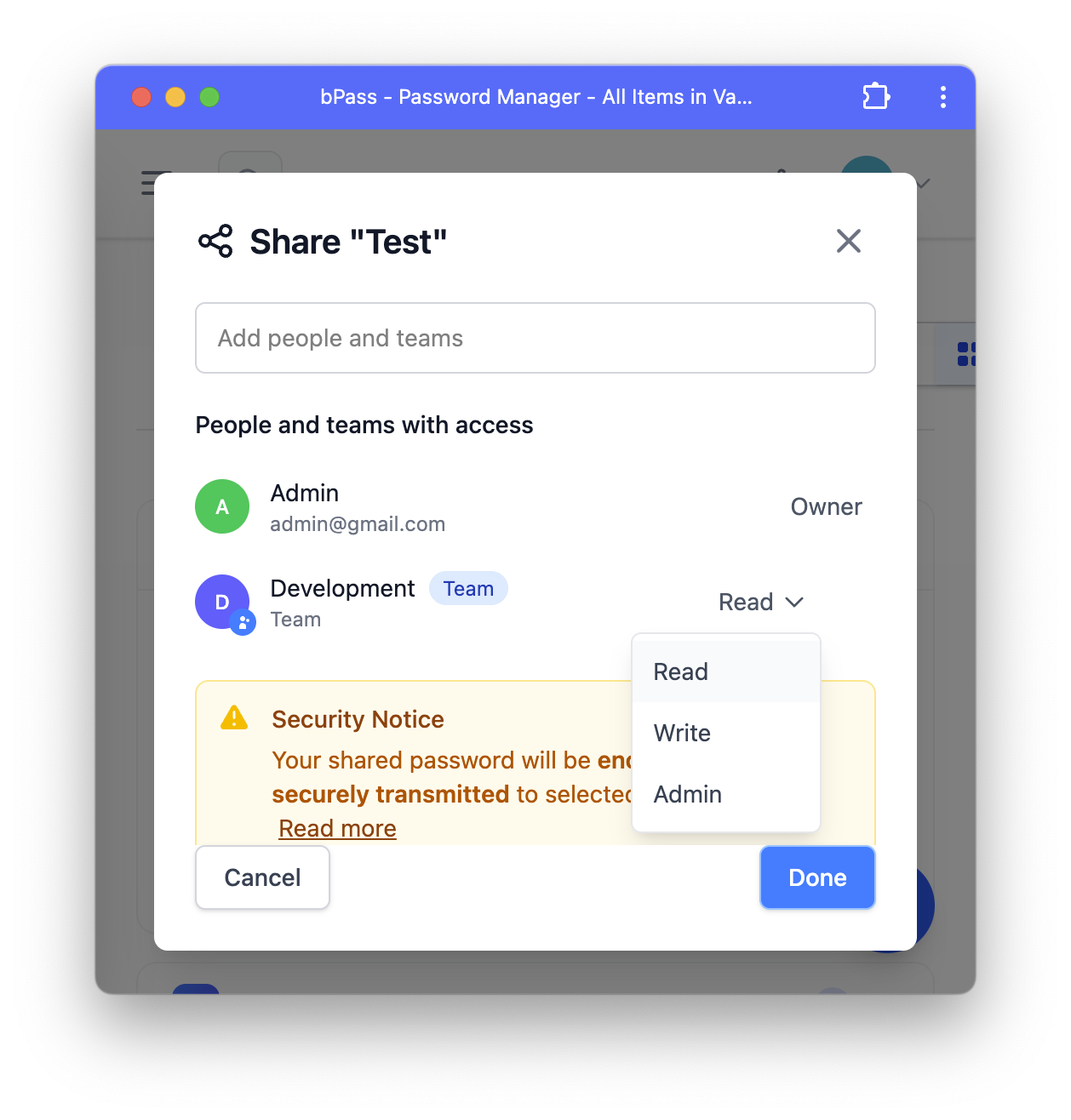
When sharing with your team, you can set different permission levels:
- View Only: Team members can view the entry but cannot edit it
- Edit: Team members can view and modify the entry
- Full Access: Team members can view, edit, and manage sharing permissions
Important Notes
- All current team members will automatically receive access to the shared item
- New team members added later will also gain access based on their team role
- You can revoke team sharing at any time from the sharing center
- Team sharing respects individual team member permissions and roles
Managing Team Shares
To manage or revoke team shares:
- Go to the sharing center
- Find the item you want to manage
- Click on the team sharing settings
- Modify permissions or remove team access as needed