Export Vault Data
Export your vault entries from bPass in plain text CSV or JSON format for backup, migration, or data analysis purposes. This feature allows you to create a complete backup of your encrypted vault data.
Security Norice
Exported files contain all your passwords and sensitive data in plain text. Store exported files securely and delete them after use.
Overview
The export functionality in bPass allows you to download all your vault entries in either CSV or JSON format. This includes:
- All your personal vault entries (passwords, credit cards, secure notes, etc.)
- Entry metadata (titles, URLs, folders, custom fields)
- All decrypted sensitive information in plain text format
Navigation: Settings → Export
Export Formats
bPass supports two export formats, each optimized for different use cases:
CSV Format
- Best for: Spreadsheet applications (Excel, Google Sheets), data analysis
- Structure: Tabular format with headers for each field
- Compatibility: Universal format readable by most applications
- File Extension:
.csv
JSON Format
- Best for: Programmatic use, backup purposes, migration to other systems
- Structure: Hierarchical format preserving all data types and nested structures
- Compatibility: Perfect for developers and advanced users
- File Extension:
.json
Security Verification
Before accessing the export functionality, bPass requires security verification to protect your sensitive data:
Master Password Verification
- Email Confirmation - Your registered email is displayed (read-only)
- Master Password Entry - Enter your current master password
- Security Validation - Password is verified against your account
- Session Authorization - Temporary access token is granted (30 minutes)
Security Features
- Time-Limited Access - Export authorization expires after 30 minutes
- Single Use Session - Authorization is cleared after successful export
- Encrypted Verification - Master password is hashed and encrypted during verification
- No Storage - Your password is never stored during the verification process
How to Export Your Data
Step 1: Access Export Tool
- Navigate to Settings from your dashboard
- Click on "Export" in the settings menu
- You'll be redirected to the security verification page
Step 2: Security Verification
![Security verification interface showing email and master password fields]
- Confirm Your Email - Your registered email address is displayed for verification
- Enter Master Password - Type your current master password in the secure field
- Click "Verify & Continue" - The system will validate your credentials
- Wait for Verification - You'll be automatically redirected to the export page
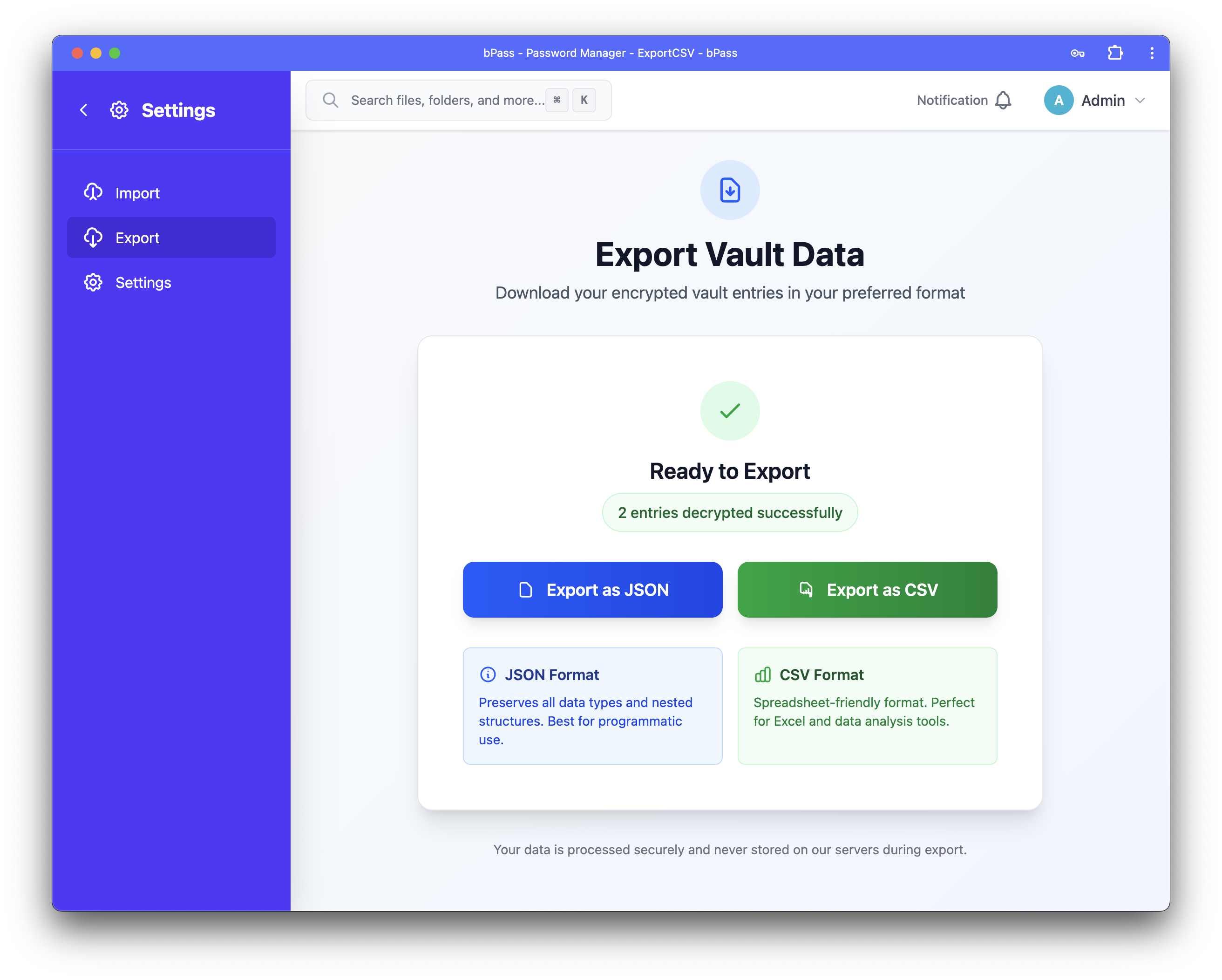
Step 3: Export Process
![Export interface showing loading and export options]
- Data Loading - bPass will automatically load and decrypt all your vault entries
- Processing Status - A progress indicator shows the decryption status
- Ready State - Once complete, you'll see the number of entries ready for export
- Choose Format - Select either CSV or JSON export format
Step 4: Download Your Data
For CSV Export:
- Click the "Export as CSV" button
- File downloads as: vault-export-YYYY-MM-DD.csv
- Opens easily in Excel, Google Sheets, or any spreadsheet application
For JSON Export:
- Click the "Export as JSON" button
- File downloads as: vault-export-YYYY-MM-DD.json
- Contains structured data with all fields and metadata preserved
Export File Structure
CSV Format Example
entry_title,url,username,password,notes,folder,created_at,updated_at
Gmail,https://gmail.com,john@example.com,MySecurePassword123,Personal email account,Personal,2024-01-15,2024-01-20
GitHub,https://github.com,johndoe,DevPassword456,Work development account,Work,2024-01-16,2024-01-21
Bank Login,https://mybank.com,john.doe,BankPass789,Primary checking account,Banking,2024-01-17,2024-01-22
JSON Format Example
[
  {
    "id": 1,
    "entry_title": "Gmail",
    "url": "https://gmail.com",
    "username": "john@example.com",
    "password": "MySecurePassword123",
    "notes": "Personal email account",
    "folder": "Personal",
    "vault_template": {
      "name": "Password",
      "fields": [...]
    },
    "created_at": "2024-01-15T10:30:00.000Z",
    "updated_at": "2024-01-20T14:45:00.000Z"
  },
  {
    "id": 2,
    "entry_title": "GitHub",
    "url": "https://github.com",
    "username": "johndoe",
    "password": "DevPassword456",
    "notes": "Work development account",
    "folder": "Work",
    "vault_template": {
      "name": "Password",
      "fields": [...]
    },
    "created_at": "2024-01-16T09:15:00.000Z",
    "updated_at": "2024-01-21T16:20:00.000Z"
  }
]
Security Warnings & Best Practices
⚠️ Critical Security Considerations
Exported files contain all your sensitive data in plain text! Follow these essential security practices:
File Security
- Secure Storage - Store exported files in encrypted folders or drives only
- Temporary Use - Delete export files immediately after use
- No Cloud Storage - Avoid storing in unencrypted cloud services (Dropbox, Google Drive, etc.)
- Physical Security - Keep backup media in secure, locked locations
Access Control
- Private Devices - Only export on your personal, trusted devices
- Clean Environment - Ensure no screen sharing or monitoring software is active
- Secure Networks - Use only trusted, private networks (avoid public WiFi)
- Browser Security - Clear downloads folder and browser cache after use
Export Limitations
Data Scope
- Personal Entries Only - Exports include only your personally owned vault entries
- Shared Entries - Entries shared with you by others are not included in exports
- Team Data - Team vault entries may require separate export permissions
- Deleted Items - Deleted entries are not recoverable through export
Technical Limitations
- File Size - Large vaults may take longer to process and export
- Browser Limits - Some browsers may limit download sizes for security
- Session Timeout - Export authorization expires after 30 minutes of inactivity
- One-Time Use - Must re-verify for each export session
Recommended Use Cases
✅ Appropriate Uses
- Backup Creation - Regular encrypted backups for disaster recovery
- Migration - Moving to another password manager or system
- Data Analysis - Analyzing password patterns for security improvement
- Compliance - Meeting organizational data audit requirements
❌ Inappropriate Uses
- Sharing - Never share export files with others
- Version Control - Don't commit export files to code repositories
- Email Transfer - Never send export files via email or messaging
- Long-term Storage - Don't keep export files for extended periods
After Export Checklist
- Verify Download - Confirm the export file downloaded completely
- Test Access - Verify you can open and read the exported data
- Secure Storage - Move file to encrypted storage immediately
- Clear Session - Export authorization is automatically cleared
- Delete Temporary Files - Remove any temporary copies from downloads folder
- Update Passwords - Consider updating critical passwords after export
- Monitor Access - Watch for any unusual account activity post-export
Emergency Procedures
If Export File is Compromised
- Immediate Action - Change all passwords in the compromised export
- Revoke Sessions - Log out of all devices and revoke active sessions
- Monitor Accounts - Watch all accounts for unauthorized access
- Enable 2FA - Add two-factor authentication where possible
- Contact Support - Report the incident to bPass support
If Export Fails
- Check Authorization - Verify your export session hasn't expired
- Retry Process - Re-authenticate and attempt export again
- Browser Issues - Try a different browser or clear cache
- Contact Support - Reach out if problems persist
Troubleshooting
Common Issues
Export Authorization Expired - Solution: Return to Settings → Export and re-verify your master password - Prevention: Complete exports within 30 minutes of verification
File Won't Download - Solution: Check browser download settings and popup blockers - Alternative: Try using a different browser or incognito mode
Incomplete Data - Solution: Ensure all vault entries are fully synced before export - Check: Verify your internet connection is stable during export
Large File Issues - Solution: Export during off-peak hours with stable internet - Alternative: Contact support for assistance with very large vaults
Getting Help
Need assistance with exports? Contact our support team:
- Knowledge Base - Search for export-related help articles
- Email Support - Contact support with specific export issues
- Live Chat - Get real-time help during business hours
- Community Forum - Connect with other users for tips and advice
Ready to export your data? Start by navigating to Settings → Export or learn about importing data from other sources.