Email Configuration
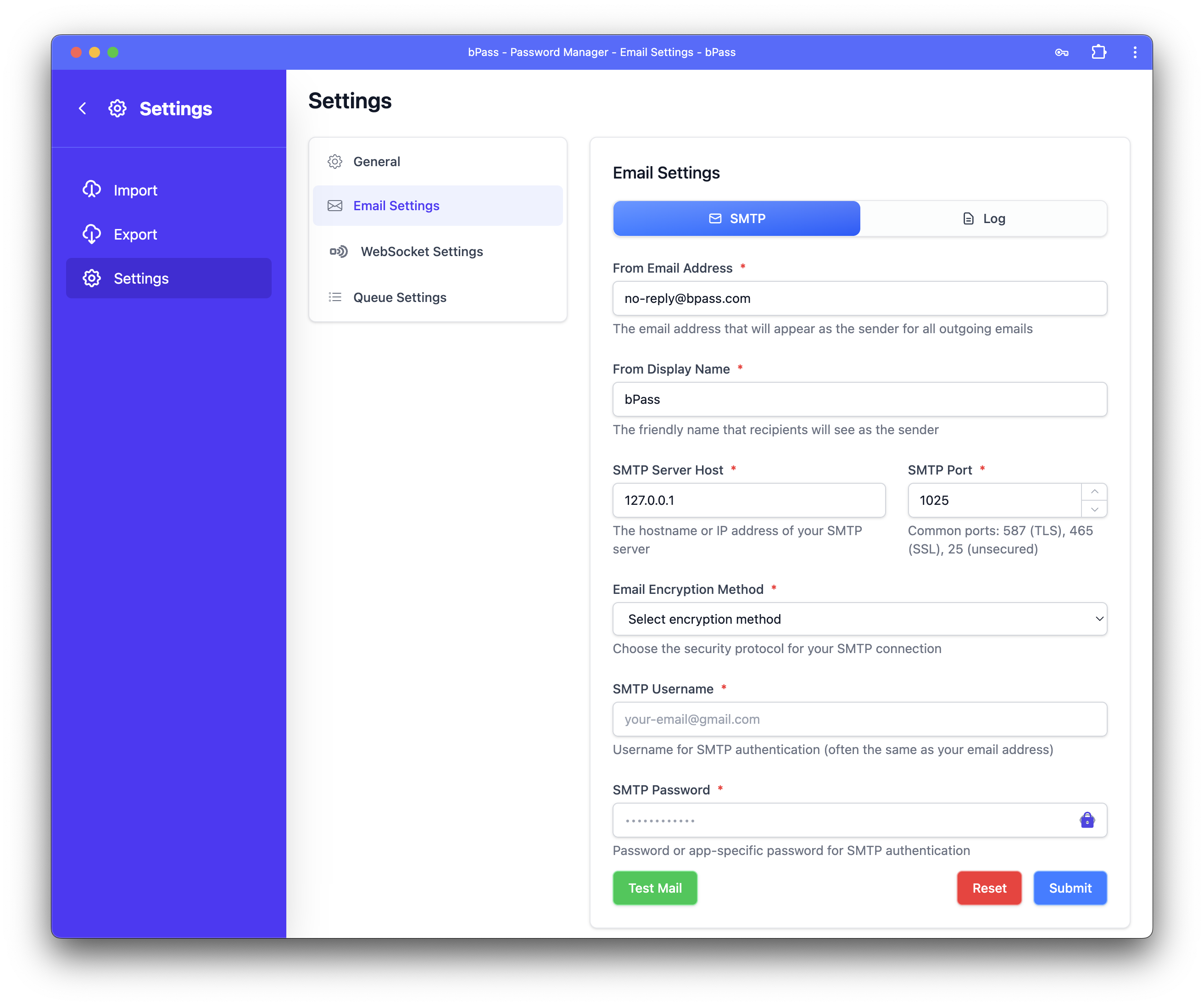
Configure email delivery for bPass to send notifications, password reset emails, and system alerts. Choose between SMTP for production use or Log mode for development and testing.
Overview
Email configuration is essential for:
- User Registration - Welcome emails and account verification
- Password Recovery - Password reset emails
- Security Alerts - Login notifications and security warnings
- System Notifications - Administrative alerts and updates
- Sharing & Collaboration - Password sharing notifications
Configuration Options
SMTP Mode (Production)
SMTP mode uses a mail server to deliver emails to recipients. This is the recommended setting for production environments.
Required Settings
From Email Settings
- From Email Address - The email address that appears as the sender (e.g., noreply@yourcompany.com)
- From Display Name - The friendly name recipients see (e.g., "Your Company Name")
Server Connection
- SMTP Server Host - Your mail server hostname (e.g., smtp.gmail.com, smtp.office365.com)
- SMTP Port - Connection port number:
- 587 - TLS (recommended for most providers)
- 465 - SSL (secure but older protocol)
- 25 - Unencrypted (not recommended for production)
Security Configuration - Encryption Method - Choose the security protocol: - TLS (Recommended) - Most secure and widely supported - SSL - Secure but older protocol - No Encryption - Only for development/testing
Authentication - SMTP Username - Usually your email address or account username - SMTP Password - Your email password or app-specific password
Common SMTP Providers
Gmail Configuration
Host: smtp.gmail.com
Port: 587
Encryption: TLS
Username: your-email@gmail.com
Password: [App Password - not your regular Gmail password]
Office 365/Outlook Configuration
Host: smtp.office365.com
Port: 587
Encryption: TLS
Username: your-email@company.com
Password: [Your Office 365 password]
Generic SMTP Configuration
Host: [Your SMTP server]
Port: 587 (or as provided by your host)
Encryption: TLS
Username: [As provided by your host]
Password: [As provided by your host]
Testing Your Configuration
- Fill in all required SMTP settings
- Click "Test Mail" to send a test email
- Check the connection status indicator:
- 🔵 Testing... - Connection test in progress
- 🟢 Connection successful! - Settings are correct
- 🔴 Connection failed - Check your settings and try again
- If successful, click "Submit" to save your configuration
Log Mode (Development)
Log mode records email events in your application logs without actually sending emails. This is perfect for development and testing.
When to Use Log Mode
- Development Environment - Test email functionality without sending real emails
- Testing - Debug email templates and workflows
- Staging Environment - Verify email triggers without affecting users
Important Limitations
⚠️ Development Mode Warnings: - Emails are logged but never delivered to recipients - Users will not receive password reset emails, notifications, or alerts - User presence features may not work properly - Check your application logs to see email events
Applying Log Mode
Simply click "Apply Log Setting" to enable log mode. No additional configuration is required.
Troubleshooting
Common Issues
Authentication Failed - Verify username and password are correct - For Gmail, use an App Password instead of your regular password - Check if two-factor authentication is enabled on your email account
Connection Timeout - Verify the SMTP host and port are correct - Check firewall settings on your server - Ensure your hosting provider allows outbound SMTP connections
SSL/TLS Errors - Try switching between TLS and SSL encryption methods - Verify your mail provider supports the selected encryption - Check if certificates are properly configured
Emails Going to Spam - Configure SPF records for your domain - Set up DKIM signing if supported by your provider - Use a dedicated IP address for better reputation
Getting Help
- Check Logs - Review application logs for detailed error messages
- Provider Documentation - Consult your email provider's SMTP settings guide
- Test Connection - Use the built-in test feature to verify connectivity
- Contact Support - Reach out with specific error messages for assistance
Security Best Practices
- Use App Passwords - Never use your main email password for SMTP
- Enable TLS - Always use encrypted connections for production
- Monitor Usage - Watch for unusual email volume or failed deliveries
- Regular Updates - Keep credentials current and rotate passwords periodically
- Dedicated Account - Consider using a dedicated email account for system notifications
Next Steps: After configuring email, you may want to set up queue processing for better performance and websocket connectivity for real-time notifications.